
Secure Gemini CLI with the Policy Engine
Learn how to use Gemini CLI’s Policy Engine to set OS-level guardrails that keep your data safe - complete with TOML examples you can copy today.

For official guidelines, read Gemini CLI Enterprise Documentation. For specific rules and syntax, read Policy Engine Reference
When you let an agent run code or read files on your computer, you need strong rules in place to make sure it doesn't mess with important system settings or steal your private info. The Policy Engine establishes these verifiable, OS-level guardrails for Gemini CLI. It evaluates every tool call against a tiered hierarchy of TOML-based rules.
A 5-Tier Priority System
Administrators control access using the Priority Tier. Gemini CLI uses a five-tier system to resolve overlapping rules, guaranteeing that organizational security mandates override local project settings.
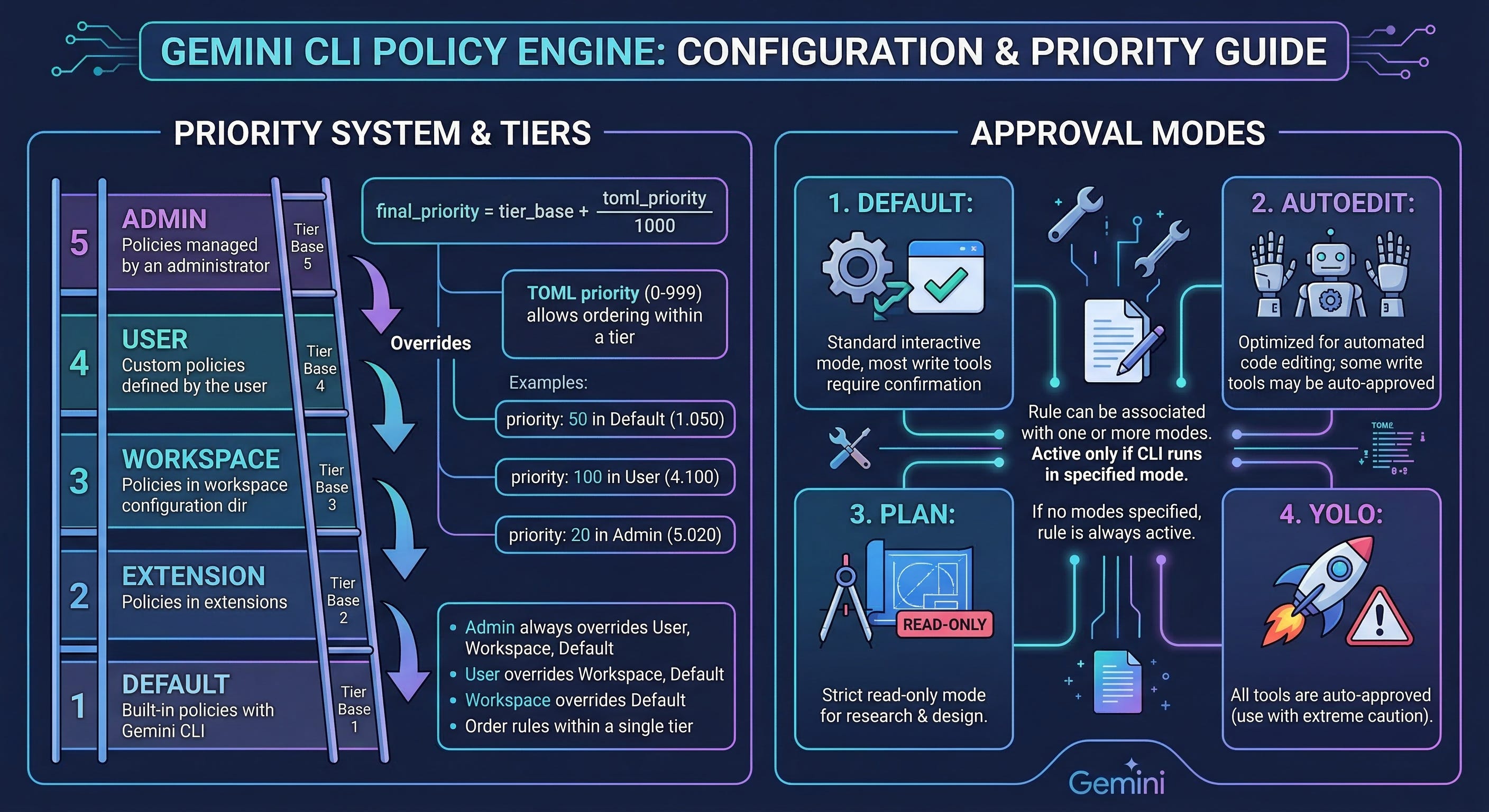
The engine converts your priority into a tier-based decimal. A rule with ‘priority = 10’ in an Admin policy becomes ‘5.010’. Even a rule with ‘priority = 999’ in a Workspace policy (’3.999’) loses to the Admin’s mandate.
Core Security Mechanisms
Gemini CLI uses two mechanisms to enforce compliance.
1. OS-Level Permission Validation
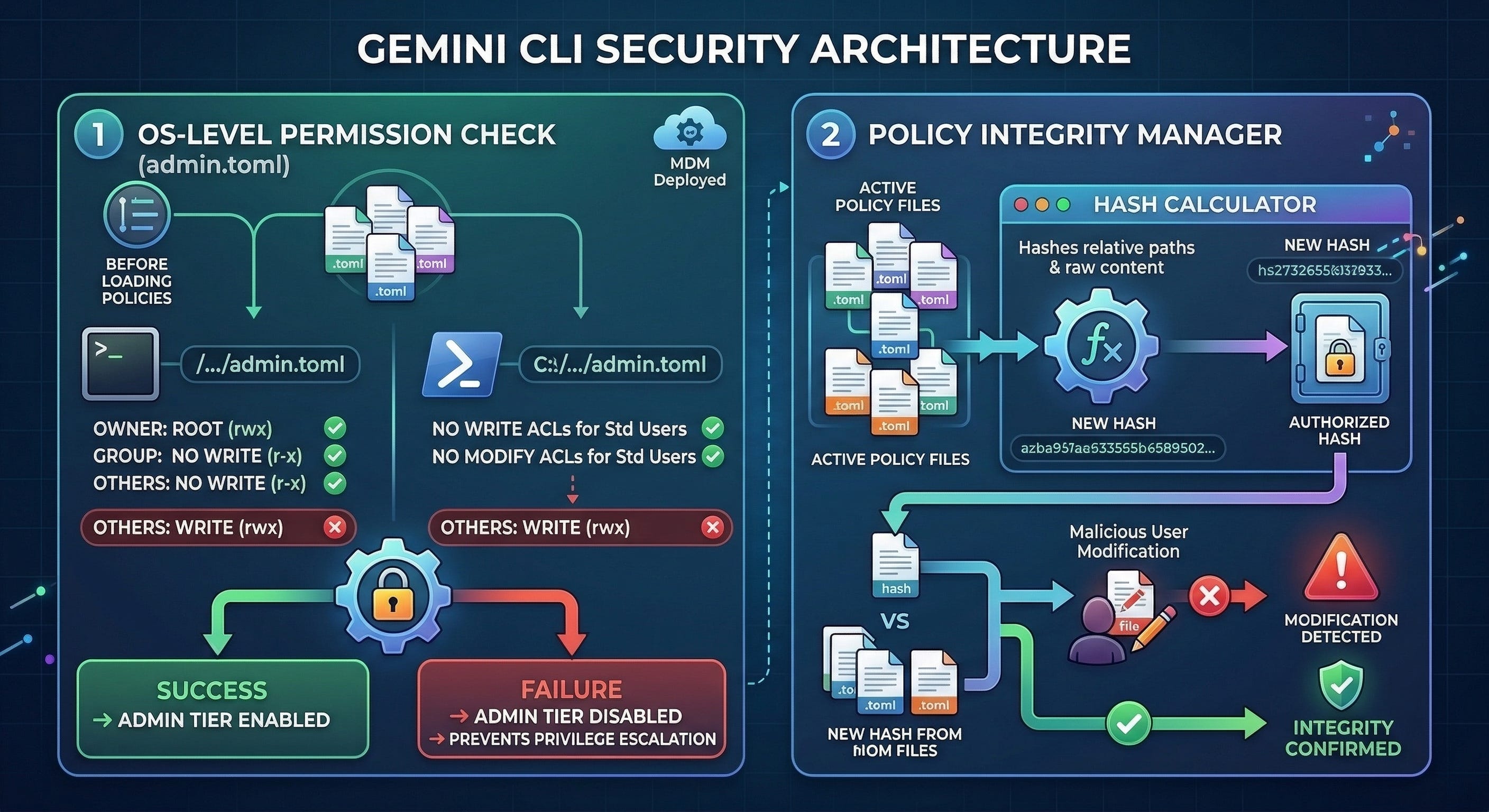
The CLI strictly validates the environment before loading policies. It checks the file system metadata of your Admin policy directory (where your ‘.toml’ rule files live—e.g., ‘/etc/gemini-cli/policies/admin.toml’ on Linux or ‘C:\ProgramData\gemini-cli\policies\admin.toml’ on Windows).
On macOS/Linux, it verifies that the directory is owned by root (uid 0) and is not writable by group or others. On Windows, it executes PowerShell scripts to ensure standard users lack ‘Write’ or ‘Modify’ ACLs. If these checks fail, the CLI ignores the Admin tier to prevent privilege escalation. Enterprise IT teams typically deploy these locked-down ‘.toml’ files via MDM (Mobile Device Management) solutions like Jamf or Intune.
2. The Policy Integrity Manager
To prevent tampering, the ‘PolicyIntegrityManager’ (in ‘packages/core/src/policy/integrity.ts’) calculates a SHA-256 hash of all active policy files. This hash includes the relative file paths and the raw content, allowing the system to detect unauthorized modifications.
Practical Examples
In an enterprise setup, the focus naturally shifts toward preventing major system failures. These TOML rules catch edge cases before they hit your infrastructure.
These guardrails only work if they stay in the Admin tier. If they’re left in ~/.gemini/policies or the local project folder, they can be accidentally modified or bypassed. Moving them to the Admin level ensures the security stays consistent across the whole organization.
Placement Guidance: These snippets must be placed in a globally enforced Admin policy file:
Linux: ‘/etc/gemini-cli/policies/admin.toml’ (Must be owned by ‘root’)
macOS: ‘/Library/Application Support/GeminiCli/policies/admin.toml’ (Must be owned by ‘root’)
Windows: ‘C:\ProgramData\gemini-cli\policies\admin.toml’ (Must restrict standard user write access)
1. Network Exfiltration
LLMs fall for prompt injection. A malicious repository or issue ticket can instruct your agent to read your ‘.env’ file and ‘curl’ it to an external server.
# Block common exfiltration tools
[[rule]]
toolName = "run_shell_command"
commandPrefix = ["curl", "wget", "nc", "netcat", "nmap", "ssh"]
decision = "deny"
priority = 900
deny_message = "Network commands are blocked to prevent data exfiltration."
2. Sensitive File Access
Never give agents carte blanche access to the file system, even in read-only mode.
# Block reading sensitive system files and secrets
[[rule]]
toolName = ["read_file", "grep_search", "glob"]
argsPattern = "(\\.env|/etc/shadow|/etc/passwd|\\.ssh/|\\.aws/)"
decision = "deny"
priority = 900
deny_message = "Access to system secrets and environment variables is prohibited."
3. Resource Exhaustion
A confused agent will read massive system files or execute recursive commands, crashing the host machine and spiking API costs.
# Block infinite data streams via prefix match
[[rule]]
toolName = "run_shell_command"
commandPrefix = ["cat /dev/urandom", "cat /dev/zero"]
decision = "deny"
priority = 950
deny_message = "Infinite-stream commands are blocked."

# Block recursive root deletion
[[rule]]
toolName = "run_shell_command"
commandRegex = "rm -rf /"
decision = "deny"
priority = 950
deny_message = "Destructive root deletion is blocked."
4. Privilege Escalation
Never let an agent elevate its own permissions.
# Block privilege escalation
[[rule]]
toolName = "run_shell_command"
commandPrefix = ["sudo", "su ", "chmod 777", "chown "]
decision = "deny"
priority = 950
deny_message = "Agents are not permitted to elevate privileges."
Operationalizing Policies
The goal is to match security boundaries to the actual work being done. If every interaction is treated the same way, the setup risks being either too locked down for developers to be productive or too open to stay secure. Adopt a persona driven approach by mapping ‘ask_user’, ‘allow’, and ‘deny’ decisions explicitly to the agent’s context.
Persona 1: The Human-in-the-Loop Developer
These quality-of-life rules belong in the Workspace Tier so they are checked into version control and shared with the team. Save this as ‘./.gemini/policies/dev.toml’ in your project root.
Policy Strategy
Default State: ‘ask_user’ for all write and execution operations.
Allow: Read-only operations (’read_file’, ‘grep_search’), specific, safe commands (’git status’, ‘npm run lint’), and read-only Model Context Protocol (MCP) server tools.
Deny: Destructive commands (’rm -rf’) or modifications outside the local workspace.
Example Workspace Policy (’.gemini/policies/dev.toml’):
# Allow the CLI to read freely to build context
[[rule]]
toolName = ["read_file", "grep_search", "glob"]
decision = "allow"
priority = 100

# Auto-approve safe local commands
[[rule]]
toolName = "run_shell_command"
commandPrefix = ["npm test", "git diff"]
decision = "allow"
priority = 100

# Allow all tools from the "github" MCP server, but prompt for writing files
[[rule]]
mcpName = "github"
decision = "allow"
priority = 100

# Explicitly prompt for file modifications
[[rule]]
toolName = ["write_file", "replace"]
decision = "ask_user"
priority = 100

# Block a dangerous command and provide a clear explanation to the user
[[rule]]
toolName = "run_shell_command"
commandRegex = "^rm -rf /"
decision = "deny"
priority = 999
deny_message = "Blocked by enterprise policy: Destructive root commands are prohibited."
Use gemini --policy .gemini/policies/dev.toml if workspace policies do not load
Persona 2: The Autonomous CI/CD Agent
Headless CI/CD deployments, like automated PR reviewers, cannot use the “ask_user” mechanism. Because this agent runs autonomously, its guardrails must be absolute. These rules belong in the Admin Tier. Save this as ‘/etc/gemini-cli/policies/ci-agent.toml’ on your build server.
Policy Strategy - Zero Trust / Strict Allowlists
Default State: ‘deny’ all tools.
Allow: Only the specific tools and precise file paths required for that agent’s function.
Deny: Shell execution (unless explicitly constrained) and network requests to unapproved domains.
Example Admin Policy (’/etc/gemini-cli/policies/ci-agent.toml’):
# Baseline: Deny everything
[[rule]]
toolName = "*"
decision = "deny"
priority = 500

# Exception 1: Allow reading code in the src/ directory
[[rule]]
toolName = ["read_file", "grep_search"]
argsPattern = "\"dir_path\":\"src/.*\""
decision = "allow"
priority = 600

# Exception 2: Allow writing ONLY to test files
[[rule]]
toolName = ["write_file", "replace"]
argsPattern = "\"file_path\":\".*\\.test\\.ts\""
decision = "allow"
priority = 600

# Exception 3: Block all shell commands outright
[[rule]]
toolName = "run_shell_command"
decision = "deny"
priority = 999
deny_message = "CI Agents are strictly prohibited from shell execution."
Persona 3: The Sandboxed Agent
When you need zero trust, run the CLI natively in its Sandbox mode. Enable this in your ‘settings.json’ as detailed in the Configuration Reference:
{
  "tools": {
    "sandbox": true
  }
}
Once sandboxed, pair it with a strict Admin policy to ensure the agent only interacts with safe directories.
Placement Guidance: Save this absolute isolation policy as ‘/etc/gemini-cli/policies/sandbox-admin.toml’.
Policy Strategy
Default State: ‘deny’ all host system operations.
Allow: Local workspace operations.
Example Sandbox Policy:
# Allow operations within the sandboxed directory
[[rule]]
toolName = ["read_file", "write_file", "grep_search", "run_shell_command"]
decision = "allow"
priority = 800

# Block network calls inside the sandbox
[[rule]]
toolName = "run_shell_command"
commandPrefix = ["curl", "wget", "nc"]
decision = "deny"
priority = 999
deny_message = "Network access is prohibited in sandbox mode."
Inspecting Active Policies
To see the full list of rules governing your session, use the following command in the Gemini CLI UI:
/policies list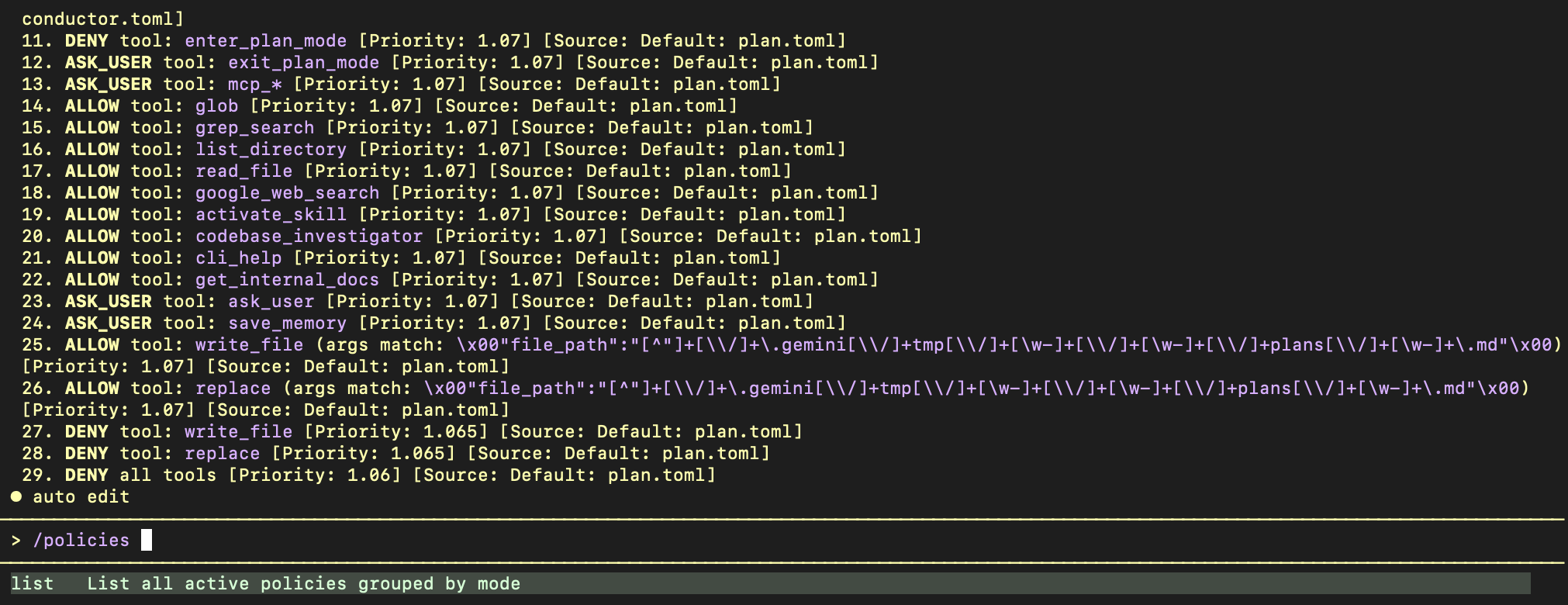
This command categorizes rules by their Approval Mode (Normal, Auto Edit, Yolo, and Plan). It displays:
The Decision (ALLOW, DENY, ASK_USER).
The Tool or pattern being governed.
The Priority (transformed into the 5-tier decimal).
The Source (e.g., ‘admin.toml’, ‘workspace.toml’, or built-in defaults).
This visibility is crucial for debugging why a specific tool might be blocked and for verifying that your policies have been correctly loaded and prioritized by the engine.
Summary
Please check /etc/gemini-cli/policies and make sure your Admin rules are locked down.